Install the alpha
Download the installer, run it, and launch FieldMap Projection Alpha from the desktop shortcut or Start menu.
MayoFlux Software Lab - Windows Alpha
A field-focused single-projector mapping demo for Windows. Trace surfaces, tune Bezier handles, test the projector output, assign local video, and save the project folder for later work.
Windows Install Note
This alpha installer is not digitally signed yet, so Windows may ask you to confirm that you trust the app before it opens. If you downloaded it from mayoflux.tv, choose More info, then Run anyway.
Screenshots
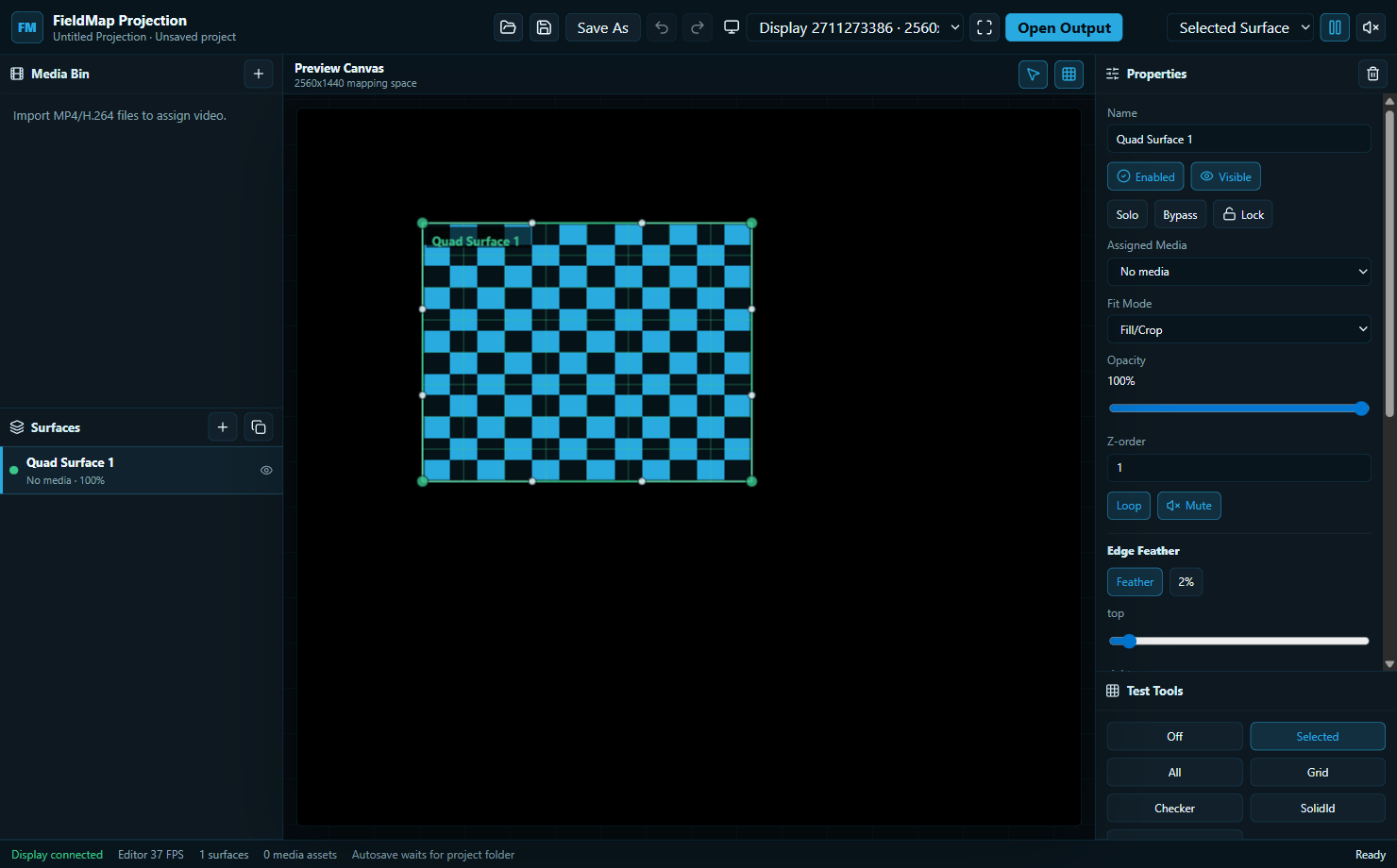
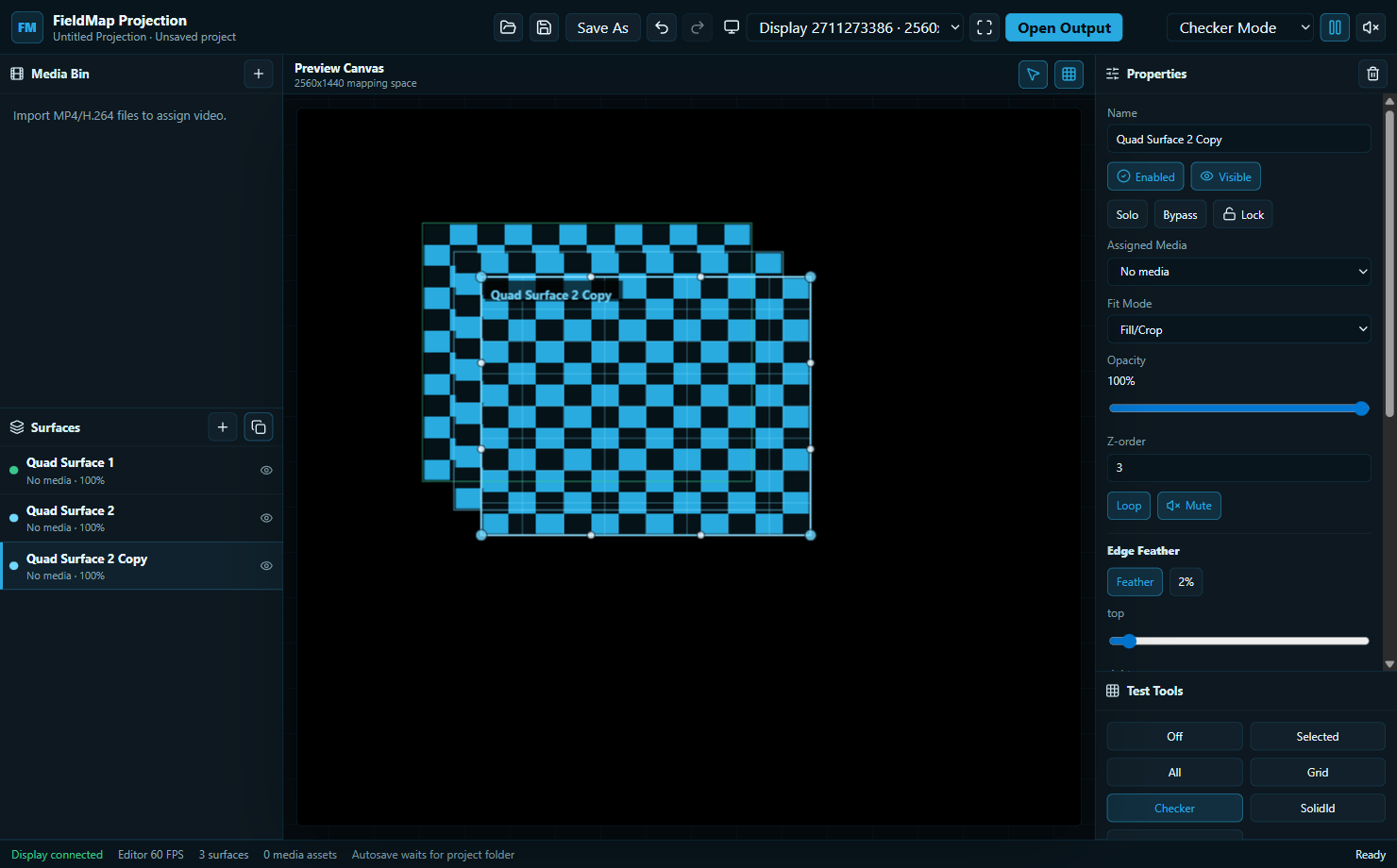
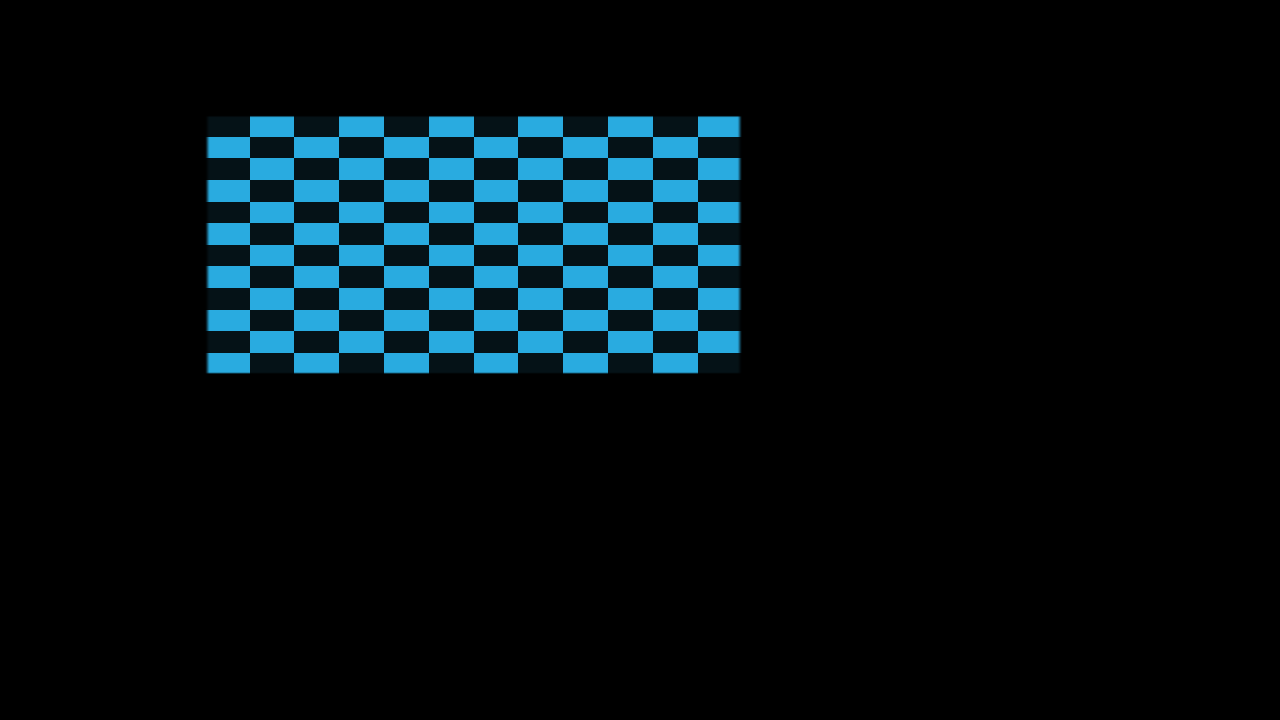
Quick Guide
Download the installer, run it, and launch FieldMap Projection Alpha from the desktop shortcut or Start menu.
Connect the projector by HDMI or another Windows display output, then choose that display from the top bar.
Use Identify Projector if needed, then open the fullscreen projector output and choose grid or checker mode for calibration.
Drag corners and handles in the editor. Use the surface list, lock/solo/bypass controls, opacity, and fit mode as needed.
Import local MP4/H.264 media into the project folder, then assign the media asset to one or more mapped surfaces.
Use Save As to pick a project folder. Media is copied into the project assets folder so the setup is easier to move.
Switch overlay mode off for clean playback once calibration is done.
Open project.json from the project folder to recover the saved surfaces, media references, and display settings.
Current Alpha Scope