BETA 1.2.0For Adobe After Effects
by  Mo Flux.
Build motion.
Keep control.
Give your 2D artwork a new rhythm. Repeat type and shapes, send motion through a pattern, and keep your child layers editable.
Kinetic type, graphic patterns and live shapes, rendered in After Effects. Includes the native workflow. Music only.
Verified in AE 26.5. AE 26.3 is an installation target; final verification is pending. Read the beta notes
Your artwork. Your composition.
Start with a precomp.
Mo Flux lives on your precomp layer, with its controls right where you expect them.
- 01
Precompose your artwork
Bring text, shapes, footage or prepared pieces into a source composition. Select its layer in your main comp.
- 02
Apply Mo Flux
Find MayoFlux → Mo Flux in Effects & Presets. Choose Repeat for copies, or Arrange to preserve your starting layout.
- 03
Make it move
Adjust the layout, add modifiers and move zones in Effect Controls. Open the precomp to edit individual child layers.

From arrangement to animation
A little structure.
A lot of possibility.
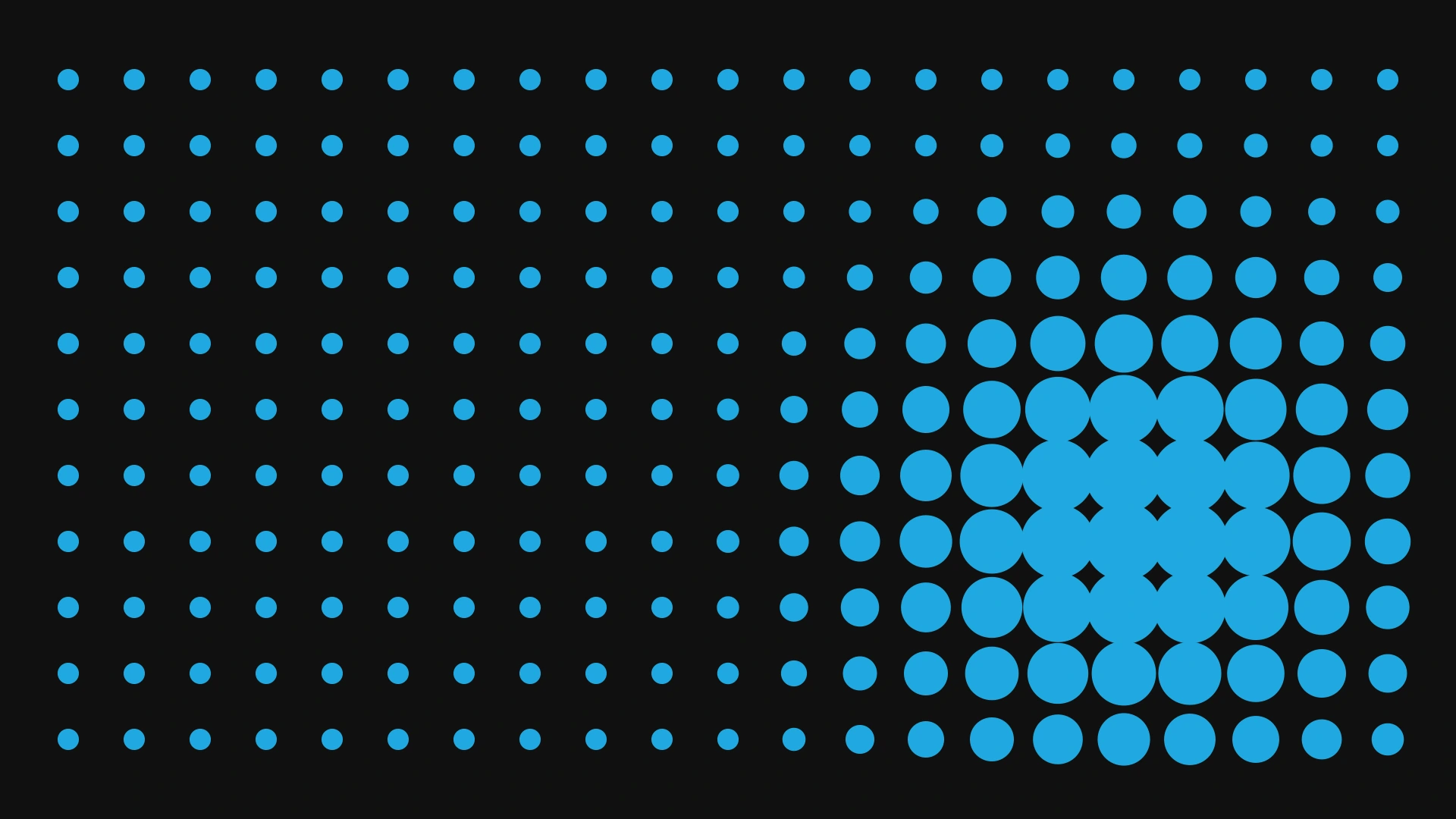
Give a grid some life.
Send a moving zone through a pattern of editable shapes.
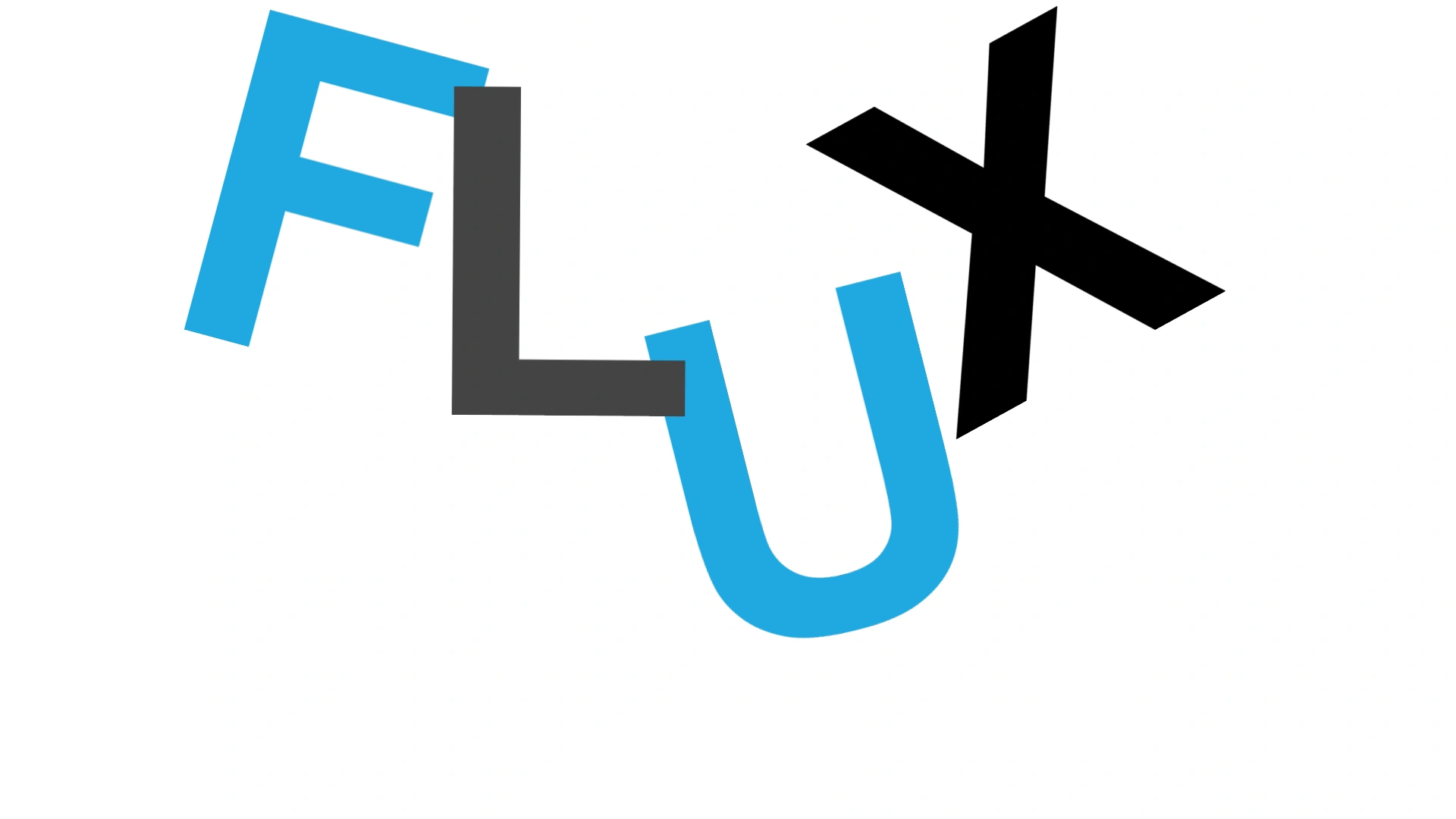
Let your type loose.
Animate prepared letters with the Arrange mode and Variation modifier.
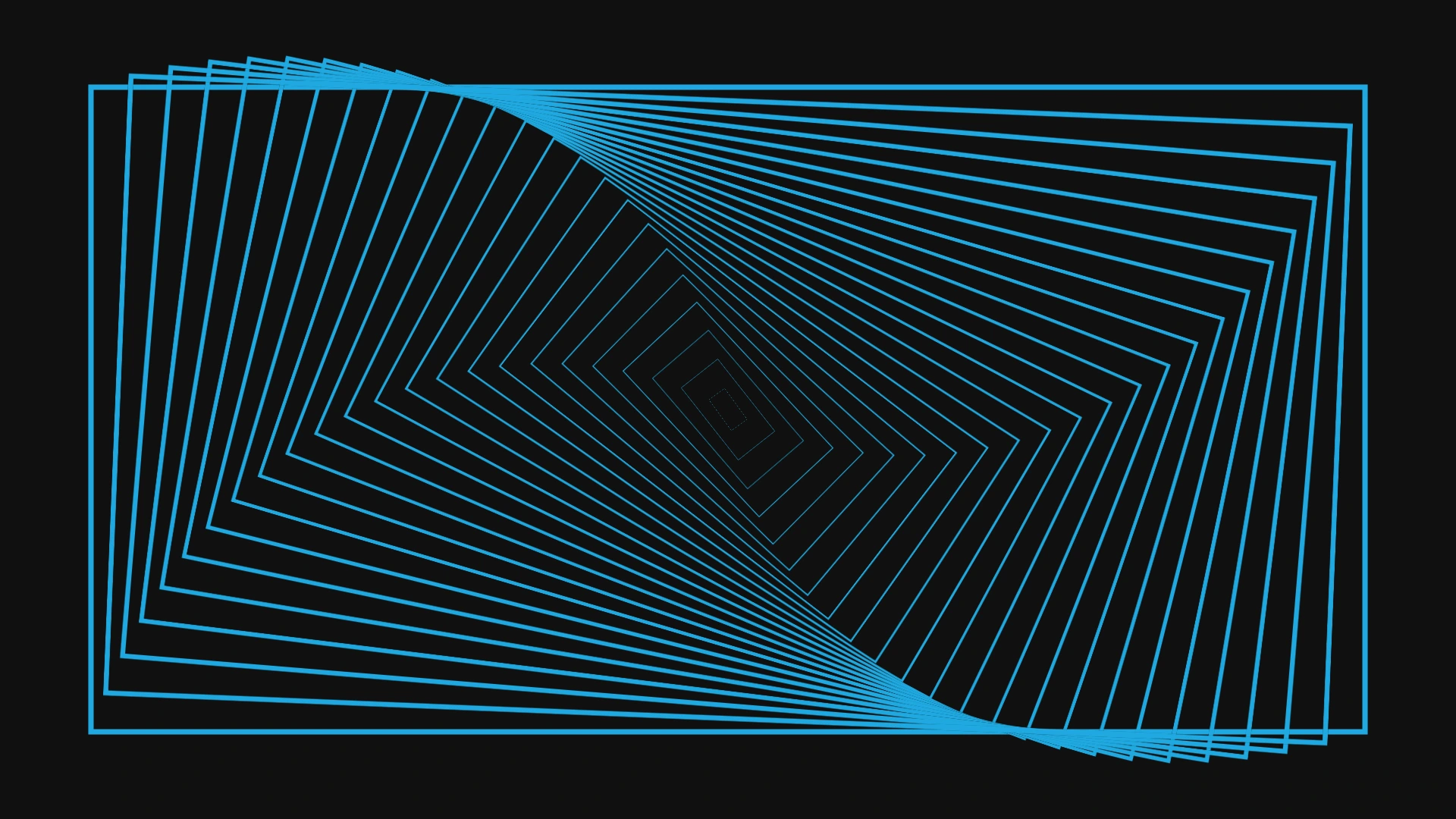
Build a graphic rhythm.
Use Sequence to step scale and rotation across repeated artwork.

Keep the whole idea together.
Repeat an assembled source comp. Edit the badge once and update every copy.
Repeat & Arrange
Build 2D or 3D arrangements, or animate existing pieces. Choose sequential or seeded random sources.
Modifiers & zones
Transform, Variation and Sequence modifiers. Linear, radial sweep, box and spherical zones, with blendable falloff.
Layers you can still edit
Live source links, individual offsets and keyframes. Use the main comp's camera to frame the hierarchy.
Get set up
Install the
Windows beta.
The download includes the plug-in, Repeat and Arrange presets, installer, uninstaller and beta notes.
Windows 64-bit
After Effects 26.5 verified
AE 26.3 final verification pending
Direct3D 11-capable GPU
Download and extract
Download Mo Flux 1.2.0 beta, then choose Extract All. Keep all the included folders together.
Save and close After Effects
Close AE and any
aerenderprocesses before installing. Keep a separate copy of important projects while testing the beta.Run the installer as administrator
Open Windows PowerShell with Run as administrator. Copy the extracted folder's path from File Explorer, then use it in place of the example below:
Set-Location -LiteralPath "C:\path\to\Mo-Flux-1.2.0-beta-Windows"Run this command from that folder:
powershell.exe -NoProfile -ExecutionPolicy Bypass -File ".\tools\Install-MoFlux.ps1"The installer checks file hashes and preserves a recognized previous installation for rollback. This command does not change your saved PowerShell execution policy.
Reopen AE and add Mo Flux
Precompose your artwork, select the precomp layer and search for Mo Flux in Effects & Presets. Open Effect Controls to get started.
Uninstall, rollback or choose a different AE installation
Save and close AE. From the extracted folder, in an administrator PowerShell window, run:
powershell.exe -NoProfile -ExecutionPolicy Bypass -File ".\tools\Uninstall-MoFlux.ps1"Add -Rollback to restore a previous version saved by the installer. Use the same Windows account that installed it.
For multiple AE installations, add -AfterEffectsRoot "C:\path\to\Adobe After Effects\Support Files" to the install or uninstall command. The installer accepts AE 26.3 and 26.5.
The included README.txt lists installed file locations and backup details.
Help shape what comes next
In beta.
Feedback welcome.
Try it, put it through a real workflow, and tell us what works and what gets in your way.
Send beta feedbackInclude your AE version, Windows version, GPU and a few steps to reproduce the issue. A screenshot or short clip helps.
Before you jump in
- Precomps only. Apply one generator per precomp. Precompose solids and other individual layers first.
- Keep interacting objects together. The main comp camera is supported, but separate generator precomps do not share depth intersections or shadows.
- Start small. Begin with 100–1,000 objects. A 5,000-object pool was tested; actual speed depends on the scene and hardware.
- Some source features are unsupported. These include adjustment layers, track mattes and non-Normal blending. Arrange works with prepared pieces; it does not cut meshes.
Read the full beta notes for transparency, import and batch-render limitations.
A MayoFlux product. Not affiliated with or endorsed by Adobe or Maxon.